
kumiko reports: edit, version, share and print
By the end of this page, you can create a client report from a template, change it in the editor, approve a version and share it. This page is for delivery leads and specialists. Creating report templates is a delivery lead task.
Before you start
- The client exists and has at least one connected source. See the clients page and the connectors page.
- Your role is delivery lead or specialist, or higher.
The report list and templates
Open Reports in the sidebar. The list shows every report with its client, its type and its last change. The types are client reports, templates and portfolio reports.
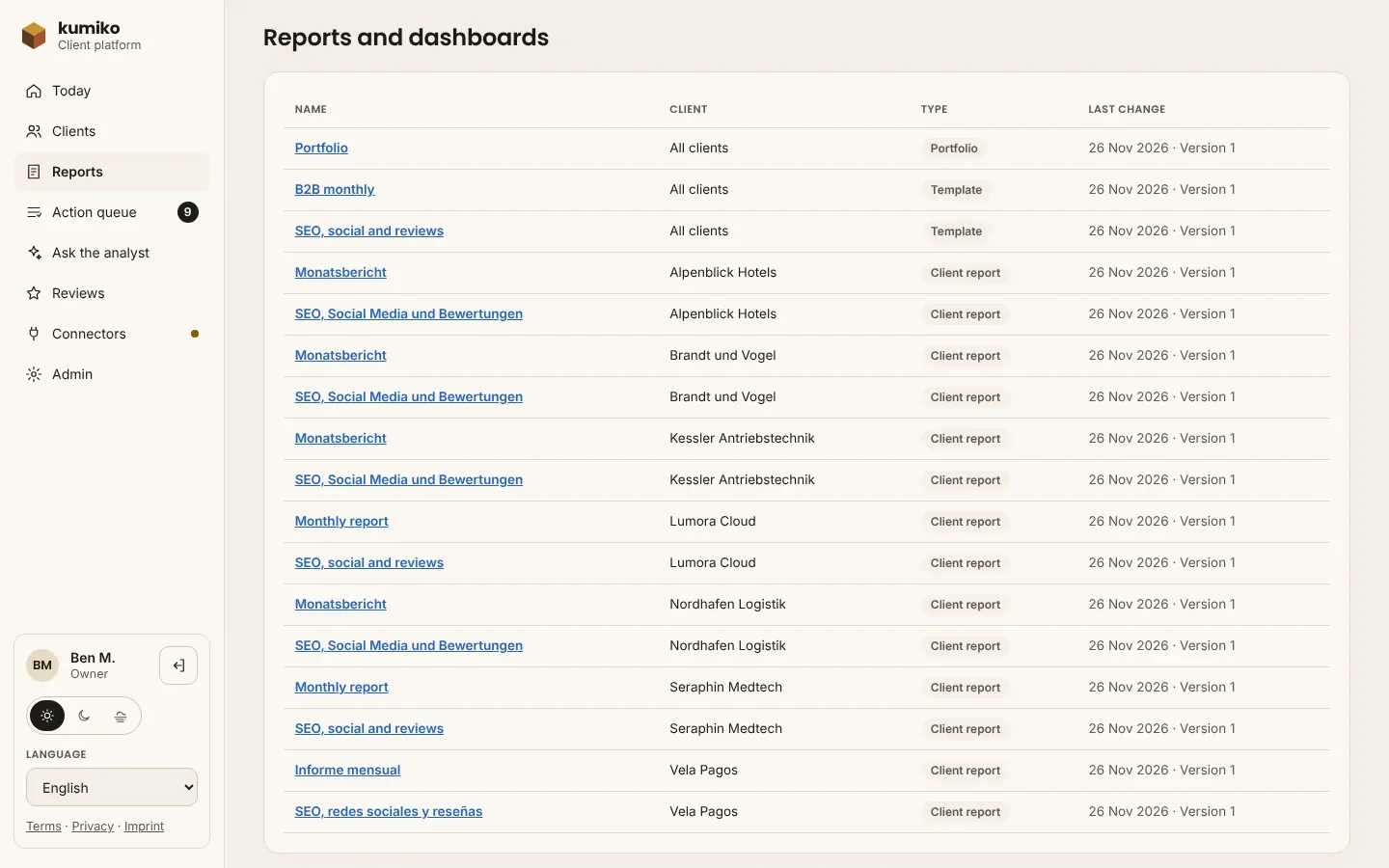
kumiko ships three templates:
- B2B monthly: the monthly report for a client.
- Portfolio: the view across all clients.
- SEO, social and reviews: followers, engagement, keywords, backlinks, visibility and reviews.
Create a report for a client from a template, or start with an empty one.
View mode
In view mode, a report shows number tiles, charts and tables, with the change against the previous period. This is what your client reads.
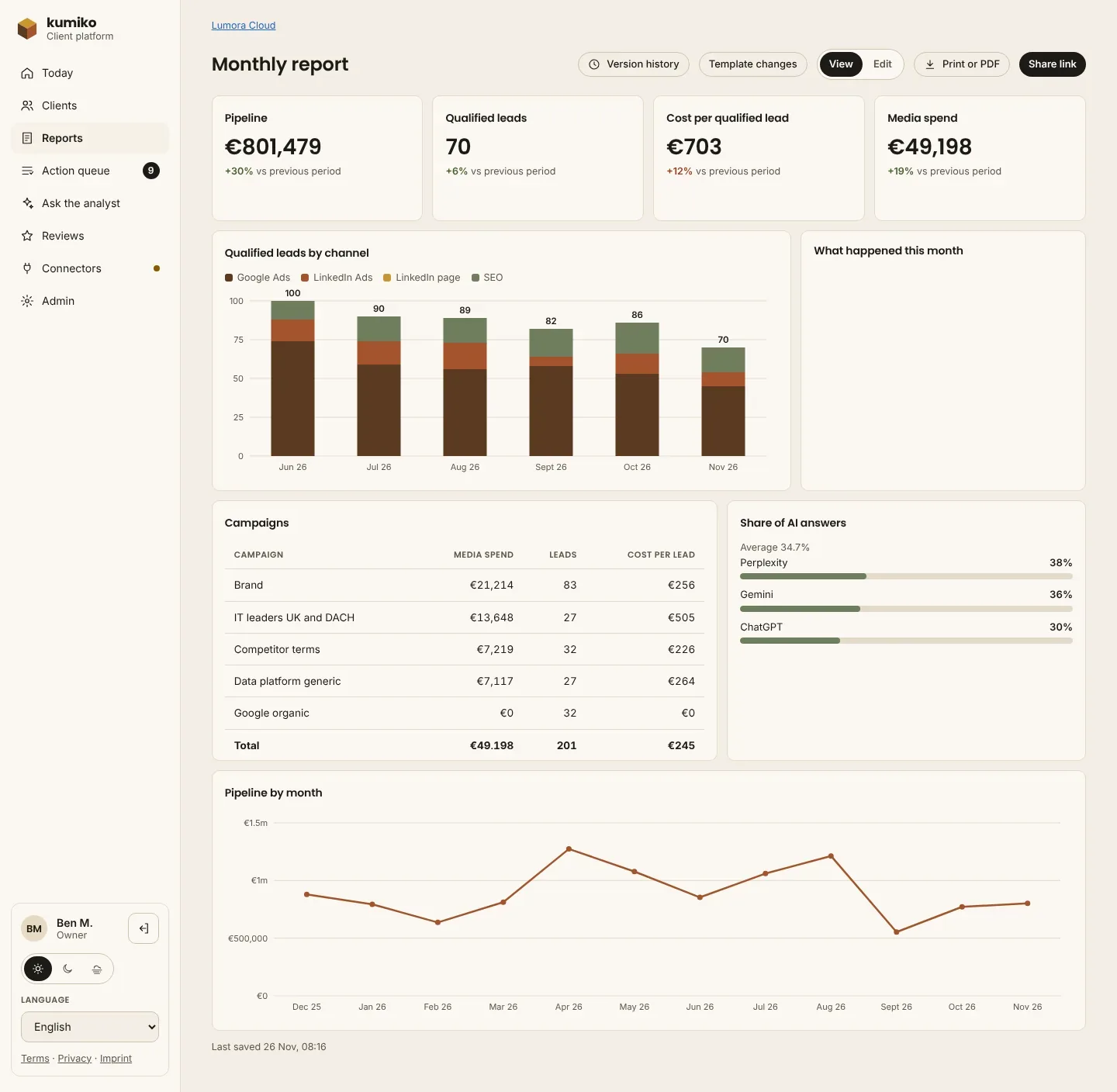
To get a PDF, use Print or PDF. Each widget can also export its data as CSV.
Edit mode
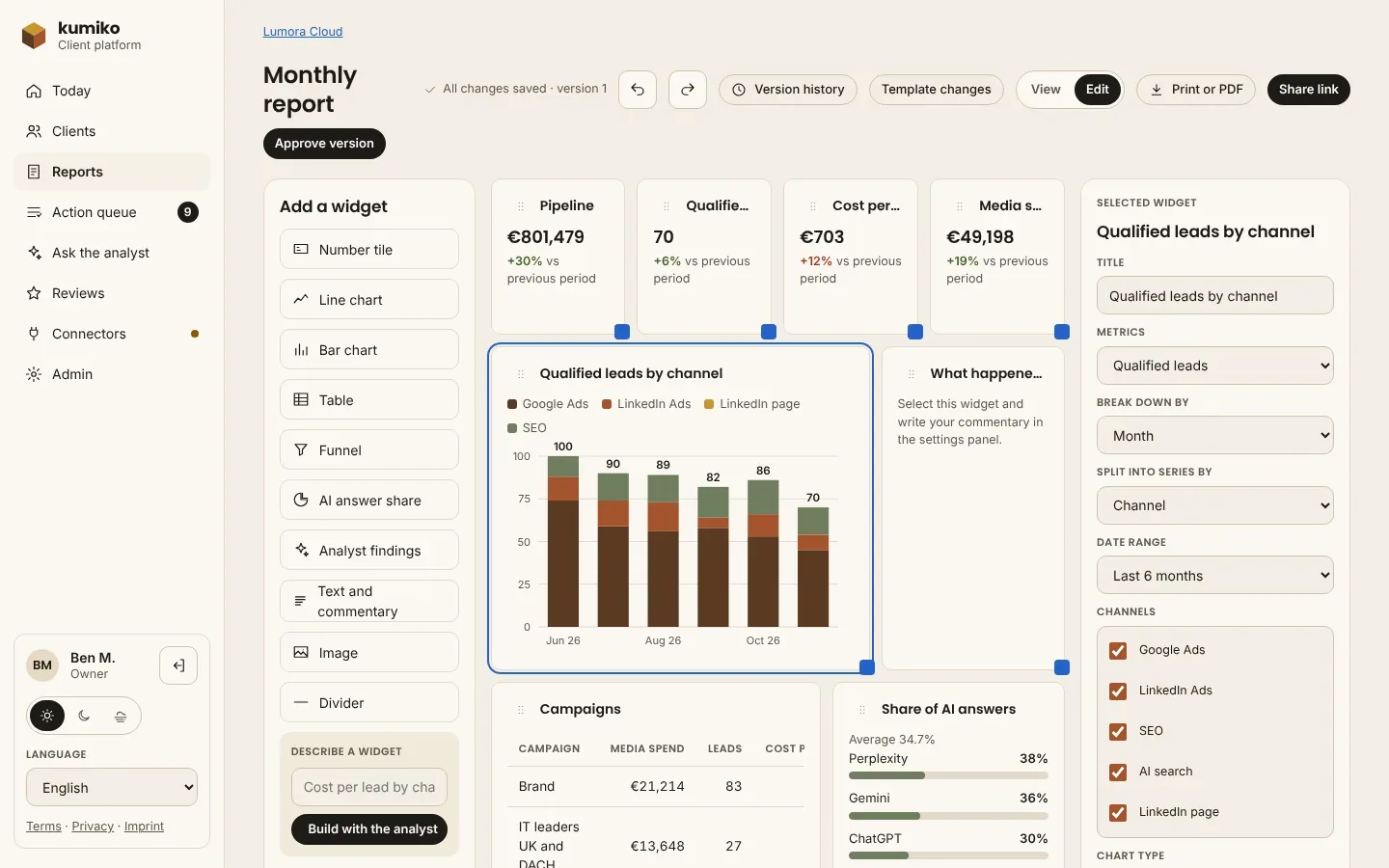
Switch to Edit at the top of the report. The editor has three areas: the widget library on the left, the grid in the middle and the properties of the selected widget on the right.
Add and arrange widgets
The widget library holds these widgets: number tile, line chart, bar chart, table, funnel, AI answer share, analyst findings, text and commentary, image and divider. Add one to the grid, drag it to move it and drag its corner to resize it. Undo and redo are at the top.
Set what a widget shows
Select a widget. The properties panel lets you set the metrics, the breakdown, the series, the date range, the channels and the chart type. For example, a bar chart of qualified leads can be broken down by month and split into series by channel, for the last six months.
Custom metrics
If the standard metrics are not enough, define a custom metric as a formula over them, for example cost per qualified lead.
Describe a widget
Under Describe a widget, write in plain language what you want to see, for example “Cost per lead by channel”, and press Build with the analyst. This needs an AI model. See the insights and AI page.
Commentary
The text and commentary widget holds your own words. Select it and write the commentary in the settings panel. A number with a sentence about what changed is the part of a report that clients read.
Versions
Every save is a new version. Open Version history to see them and restore any one. Restoring creates a new version, so nothing is lost.
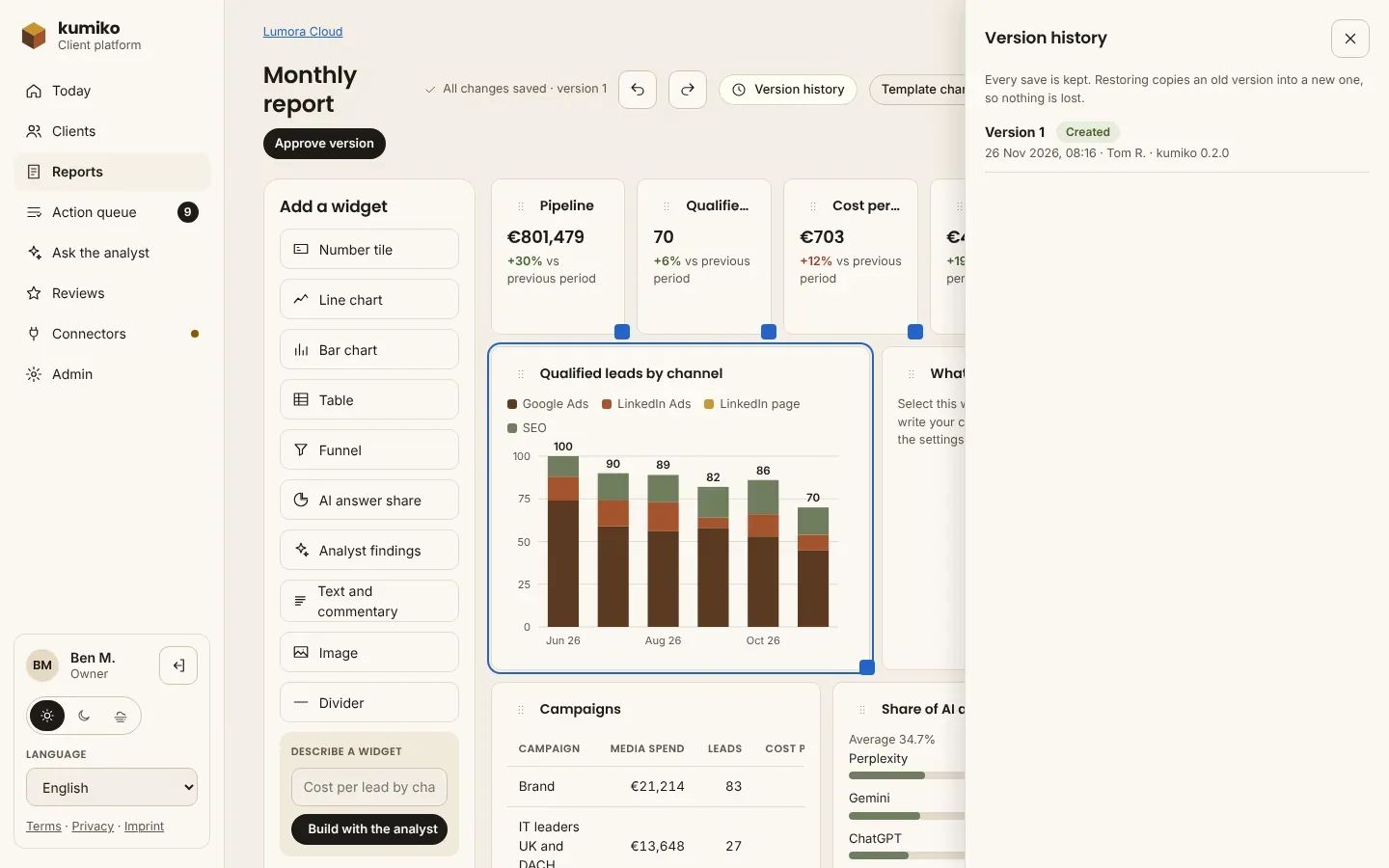
Before you send a report, press Approve version and name the version. This marks the version you stand behind.
Template changes
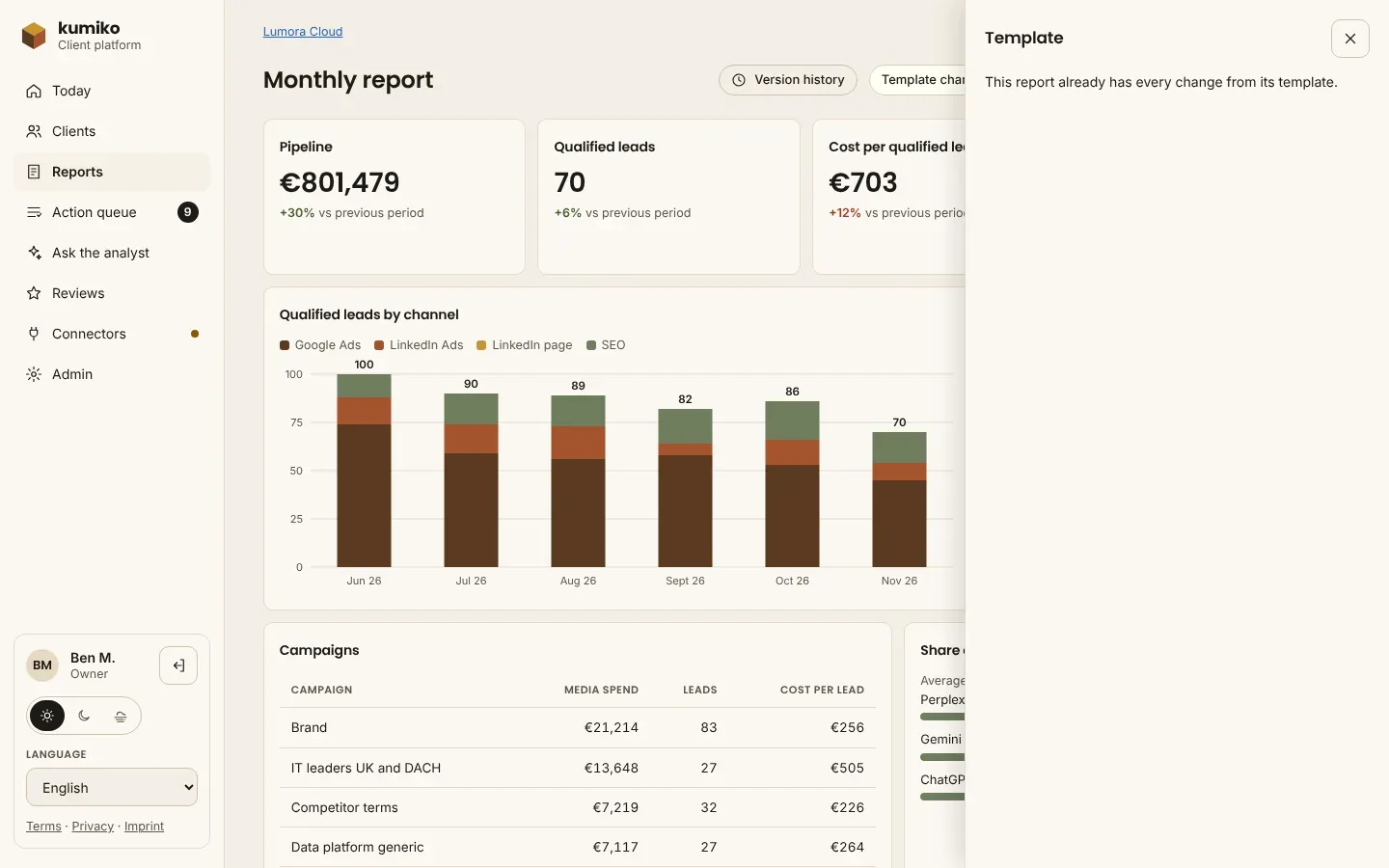
A report built from a template does not change by itself when the template changes. Open Template changes to see what is new as a preview. Nothing is applied until someone clicks apply, and the edits you made for the client are kept.
Share a report
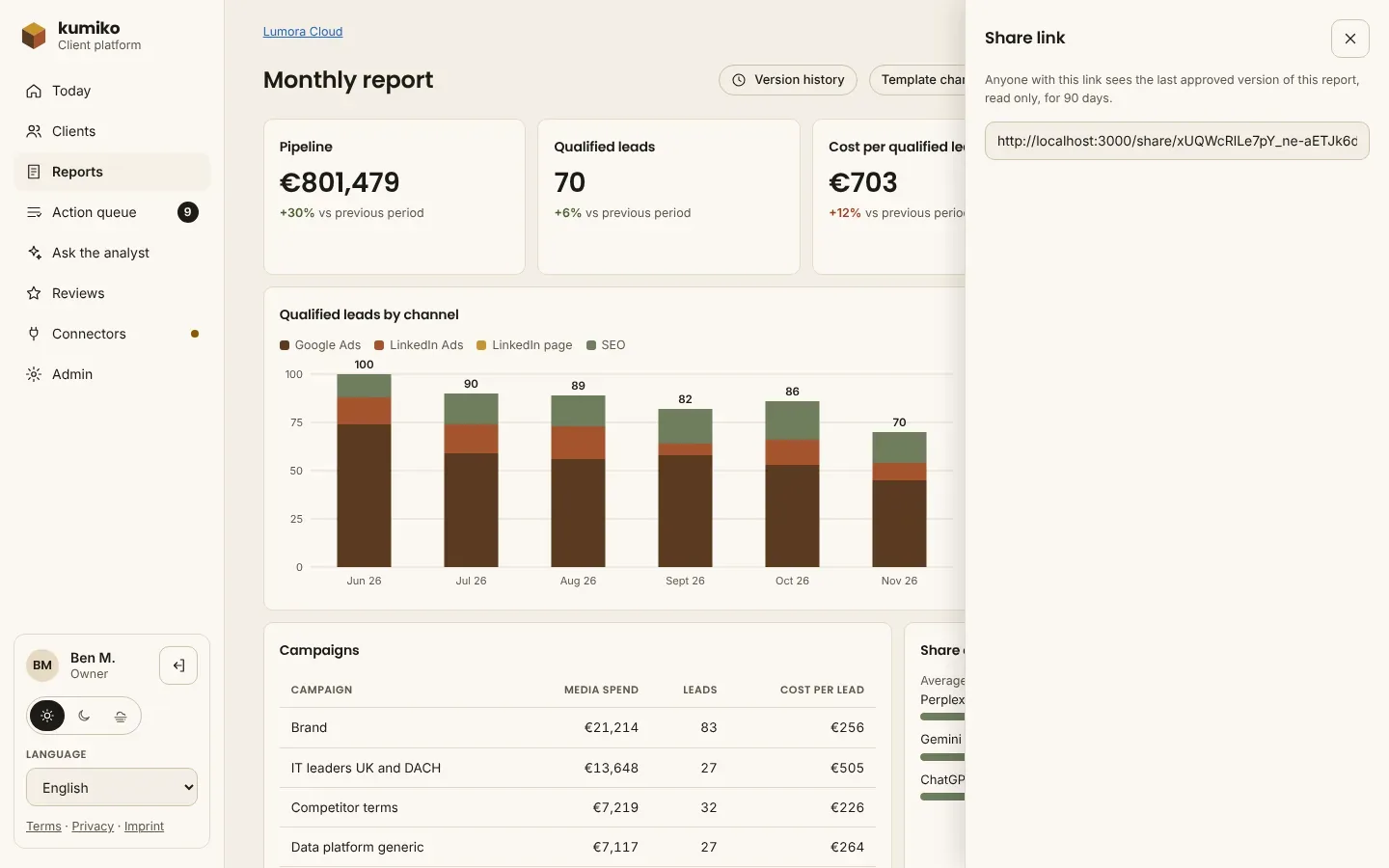
Press Share link to get a read-only link for people without a login. Anyone with the link sees the last approved version of the report, read only, for 90 days. Approve the version you want to share first.
You can also give the client their own login, so they see their reports whenever they like. See the clients page.
The “SEO, social and reviews” template
This template covers the organic side of a client’s marketing: followers, engagement rate, ranking keywords, backlinks, the visibility index and reviews.
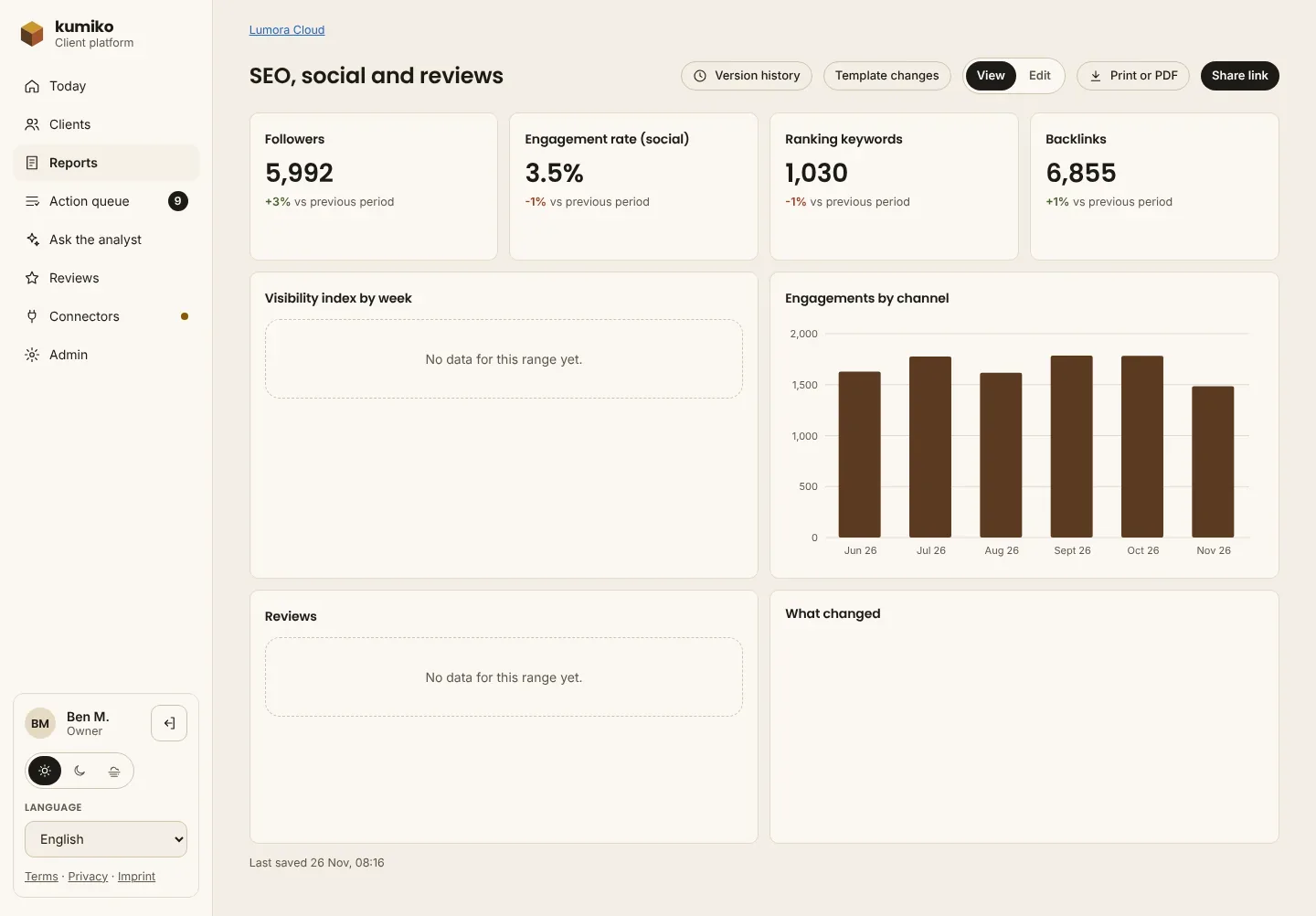
Note: followers, the visibility index, backlinks and platform ratings are latest values of the period, not sums. Reviews appear in the template with new reviews, the average rating, the rating on the platform and the reply rate. See the reviews page.
On a phone
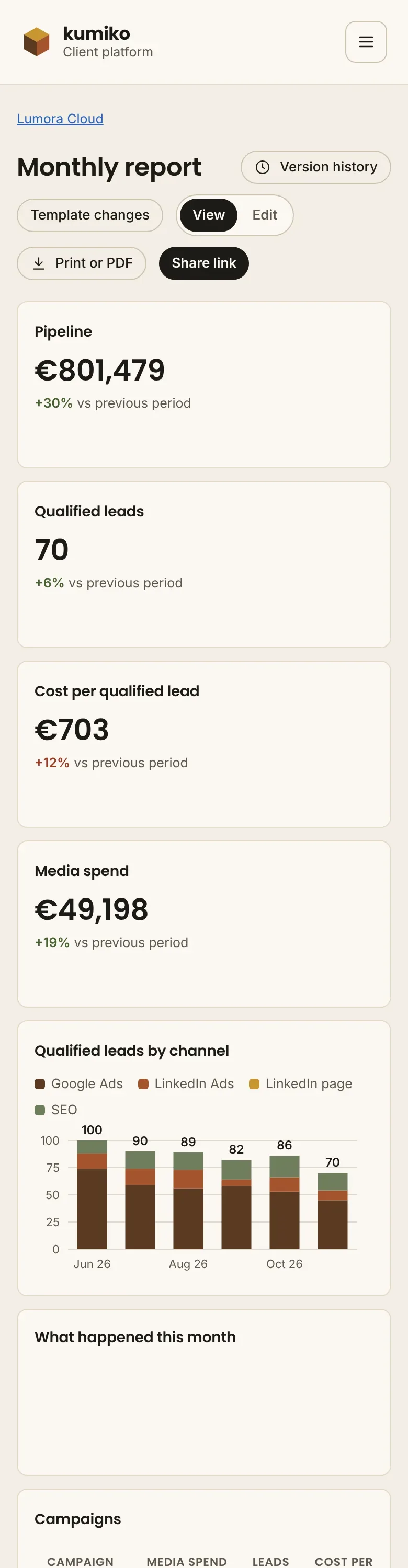
Reports can be read on a phone.
FAQ
Can an update change my reports?
No. An update never changes or deletes a client report or any saved version of it. New features appear in the widget library, and new template content arrives as a preview that you apply by hand. See the updates page.
Can clients change reports?
A client who edits a report gets a personal copy. Widgets that the team has locked cannot be changed.
How do I undo a change?
Use undo in the editor for the current session. To go back further, open Version history and restore an earlier version. The restore becomes a new version.
Can I send a report to someone without a kumiko login?
Yes. Use a share link, which is read only and valid for 90 days. You can also print the report to PDF.
Can I export the data behind a chart?
Yes. Each widget can export its data as CSV.
Questions? Write to kumiko@kodokalabs.com.